App Store Connect API keys: scope, rotation, and what to do if one leaks
Posted by Kyle Hankinson May 1st, 2026
If you're using any third-party tool that reads your App Store sales data -- including Daily Sales Email -- it's almost certainly authenticating with an App Store Connect API key. Those keys are sensitive and most indie developers handle them more casually than they should. This is a practical guide on getting it right.
Pick the right scope
When you create an API key in App Store Connect (under Users and Access > Integrations), Apple makes you choose a role. The options include Admin, App Manager, Developer, Marketing, Customer Support, Account Holder, Finance, and Sales and Reports.
For analytics tools -- anything that just reads sales data -- you want Sales and Reports. It's the narrowest read-only role that includes the Sales and Trends API endpoints. It does not let the holder of the key:
- Create or modify apps
- Submit builds
- Change pricing
- Manage users
- Read banking or tax info
- Touch your account configuration
If a tool asks for App Manager or Admin access just to send you a report, push back. The only legitimate reason for that level of access is if the tool also writes to your account -- which an analytics tool shouldn't be doing.
Rotate keys periodically
Apple doesn't auto-rotate keys for you. The default is "valid until you revoke it." A reasonable cadence for keys used by external tools is every 12 months: at year-end or during a yearly maintenance day, generate a fresh key, paste it into your tools, then revoke the old one in App Store Connect.
If you've never rotated, no shame -- most indie devs haven't. Pick a date in the next 30 days, do it once, and put a calendar reminder for next year.
What to do if a key leaks
If you accidentally commit a .p8 file to a public GitHub repo, paste it into a chat, or otherwise expose it publicly:
- Revoke the key in App Store Connect immediately.
Users and Access > Integrations, select the key, hit Revoke. The leaked key becomes useless within minutes. - Generate a fresh key with the same Sales-and-Reports role.
- Update every tool that was using the old key -- your local scripts, Daily Sales Email, any other analytics service. They'll start getting
401 Unauthorizedfrom Apple until you swap the key in. - Don't just delete the leak from version history. If the leak is in a public Git repo, GitHub's caching and indexing means the secret may have already been scraped by attackers. Revoking is what protects you, not deleting; deleting just hides the evidence.
- Audit your account afterwards (Sales > Trends, Payments and Financial Reports, the recent users list). A Sales-and-Reports key can't actually do anything destructive, so the impact of a leaked key in this role is limited to "someone now sees your sales numbers" -- annoying but not catastrophic.
How Daily Sales Email handles your key
The full details are on the Security page, but to summarize:
- The
.p8private key is encrypted with AES-256-CBC before being written to our database, with a per-record initialization vector. - The plaintext key only exists in memory while a daily report is being fetched. It is not logged, not written to disk, and not transmitted anywhere except to Apple.
- You can rotate the key at any time by pasting the new contents into your account page. The old encrypted key is overwritten on save.
- If you delete your account, the encrypted key row is removed within five minutes -- no archival copy.
One specific recommendation
If you use multiple analytics tools (Daily Sales Email plus, say, AppFigures or RevenueCat), generate a separate key for each. There's no rate-limit cost -- Apple's API quotas are per-key but easily tolerated by analytics workloads -- and it means a leak in one vendor's pipeline doesn't expose your other vendors. It also makes "I'm done with vendor X, revoke their access" a single revocation rather than a coordinated rotation across everyone you've ever shared the key with.
Good hygiene that takes 30 seconds at sign-up time and saves you hours later.
Tags: Support
Daily Sales Email in 2026: country breakdown, recent reviews, smarter MRR
Posted by Kyle Hankinson May 1st, 2026
The daily email got a handful of substantive improvements over the last few weeks. We want to write them down in one place so it's easy to see what's new without hunting through release notes you never asked for.
Top countries breakdown
Each daily email now includes a Top countries table showing the five storefronts contributing the most proceeds yesterday, with downloads alongside, and an Other (N countries) row that sums the long tail so the column actually adds up to the totals at the top of the email.
Why this matters: most indie apps have a long tail of revenue from countries you don't think about often. A weekend spike in Brazil or Japan is the kind of signal that's easy to miss in a single-number summary but obvious when you can see the country split.
Recent reviews -- the lowest and highest
If you've enabled review tracking on your account, the daily email now shows up to three of the lowest-rated and three of the highest-rated new reviews from across your apps. Each row has stars, the app name, version, country, date, title, and a content excerpt. Reviews you've already seen in a previous email don't show up again -- we keep a small dedup memory per user so the same review never appears twice.
This is the surface where the email earns its place in your morning routine. A 1-star review from a confused customer is the kind of thing you want to react to today, not when you happen to log into App Store Connect next week.
Smarter day-over-day MRR deltas
The per-app and summary MRR and Trials numbers now include a day-over-day delta -- something like +$45.41 since yesterday, -2 since yesterday, or no change -- with a subtle blue/red color cue.
The honest part: Apple's subscription reports occasionally lag a day or two behind the sales report. When yesterday's subscription data hasn't arrived yet, we now suppress the delta entirely rather than fabricating a comparison against zero. You'll see today's value but no since yesterday line. We'd rather be silent than wrong.
Per-IAP MRR
The IAP summary table now shows MRR per subscription IAP alongside the Proceeds column. A Lifetime IAP shows $X / - (no MRR because it's one-time); a Yearly subscription IAP shows $X / $Y with the same delta treatment. One-time IAPs continue to show just the Proceeds.
Hover-on-cell tooltips
For desktop and webmail readers (Gmail web, Outlook web, Apple Mail desktop), hovering on a Downloads or Proceeds cell now shows a small tooltip with the breakdown:
Downloads: 325
Trials: 72 (+4 since yesterday)
Mobile clients don't render hover tooltips, so the visible numbers stay self-explanatory; the tooltip is bonus detail for desktop readers who want it.
Same email, more signal
The shape of the email hasn't changed. It's still one piece of mail per day, no dashboard, no dependency on logging into anything. We just used the surface better. If you want to see the new layout in action without setting up an account, the sample email page renders a live example.
Tags: Feature
Free advertising for independent devs
Posted by Kyle Hankinson February 23rd, 2021
As an independent developer, I know how hard it is to advertise. That's why I want to take this opportunity to allow other independent developers to advertise their products via Daily Sales Email.
Requirements
To advertise with Daily Sales Email, four things are needed:
- Title A short title. Usually the name of the app or product.
- Description A longer description descring the app or product to the end user. It must be 200 characters or shorter.
- Icon An png image of at least 128x128px.
- Link A link to where the user will be taken when interacting with the advertisement.
In addition, you must have a Daily Sales Email account (it can be a free account).
Example
Advertisements appear at the bottom of each email. An example advertisement would look as follows:
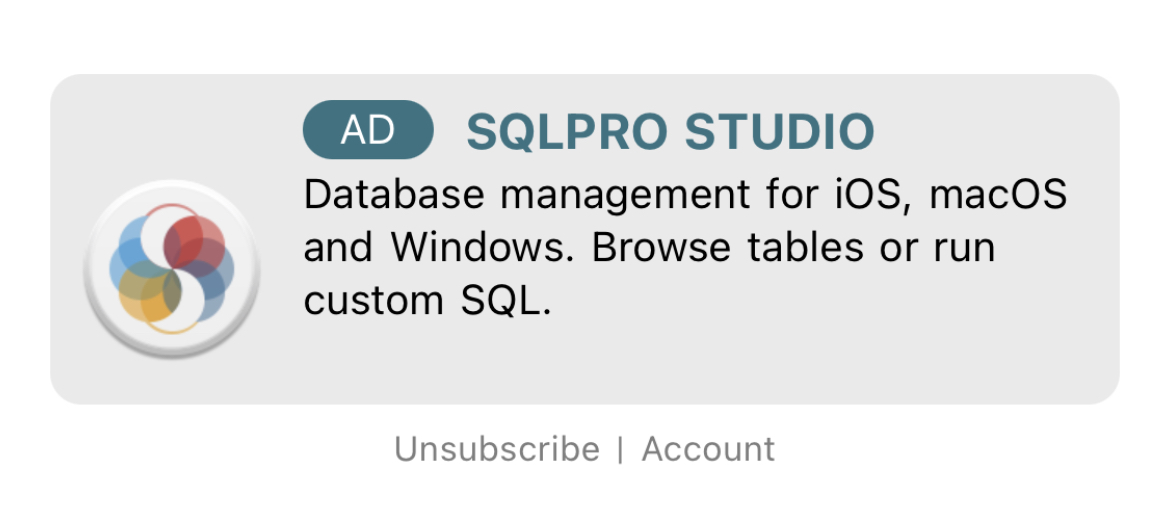
Paying users have the ability to disable advertisements should they wish.
A list of the active advertisements is available here.
Get started
Once you have created an account and logged in, you can update your advertisement. Each time an advertisement has been updated it is removed from the rotation until it has been manually reviewed. (You may need to contact me and let me know you would like your ad reviewed).
Notes
Advertisements will not be free forever. Some TBD time in the future free advertisements will be disabled. Advertisement approval is completely at my discretion. If I feel an app is low quality, the advertisement will not be approved.
Getting started with Daily Sales Email
Posted by Kyle Hankinson February 12th, 2021
Getting started
First, you will need to create an account. Once you have signed up and validated your email address, you will need to access your account, then select the App Store Connect section.
You will need to gather the following four items to populate the App Store Connect parameters and to begin receiving your Daily Sales Email.
- Vendor ID
- Issuer ID
- Key ID
- API Key
All of these items require access to App Store Connect. Begin by signing into App Store Connect. For the Vendor ID navigate to Sales and Trends, then pick Payments and Financial Reports from the lower left section of the navigation bar. Finally, your Vendor ID will be at the top left section of the page.
The next three items (Issuer ID, Key ID and API Key) all come from the same location. Again, begin by signing into App Store Connect. Next, hit Users and Access. From here, you will want the Keys section of the top nav bar. You might need to tap the People label in order to make Keys visible.
Next, hit the large blue Plus button near Active. Give the key a name and choose the Sales and Reports for active.
TIP: If you are using a mobile device, you may need to rotate into landscape mode to view all details for the next step.
On this page, we now have eveything we need. The Issuer ID is at the top of the page. The Key ID is displayed along side your newly added key. Finally the API Key is available by using the Download API Key link for the newly added key.

Issuer ID, Key ID & API Key
NOTE: If the Copy Key ID or Download API Key buttons are not visible, you will need to tap/click the row first.